

Side Settings Panel (Spinning Gear Icon)
The Side Settings panel has three main tabs:
- Queue
- Activity
- Personalize
Each tab helps you manage the flow of your shop, your customers, and your POS experience.
Queue Tab
Manage customers entering your shop with three main actions:

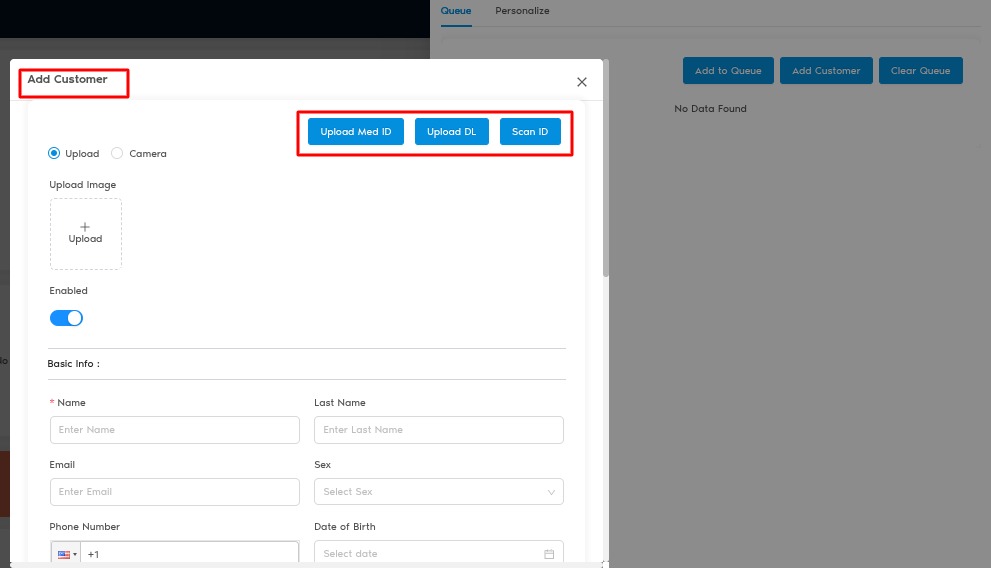
Add Customer
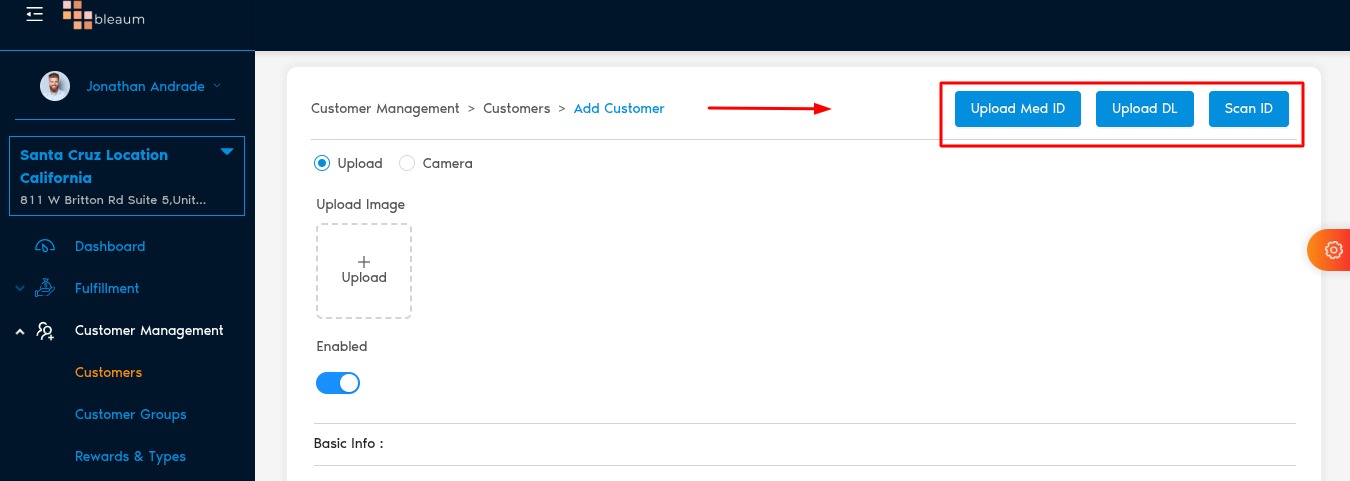
Upload customer medical ID or driver's license manually, scan ID, or upload images.
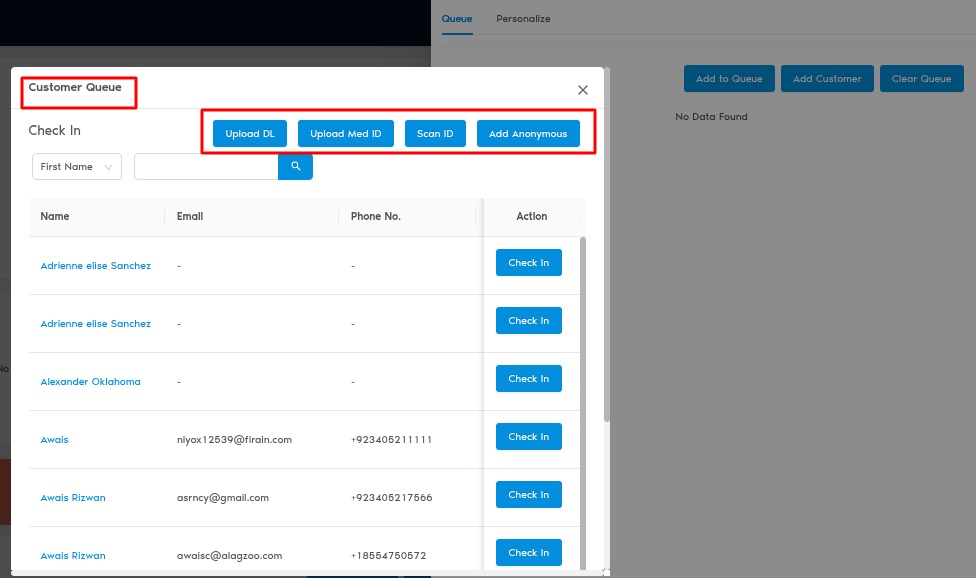
Customer Queue
Manage customers entering your shop with three main actions:
Activity Tab
Track every action happening in your shop.
What It Shows Details Activity Type Description of the action taken (e.g., Customer Added, Product Edited). Date and Time Precise time of each action. Every change, addition, deletion, and update in the system is logged for transparency and accountability.
Personalize Tab
Customize your POS interface to suit your style and workflow:
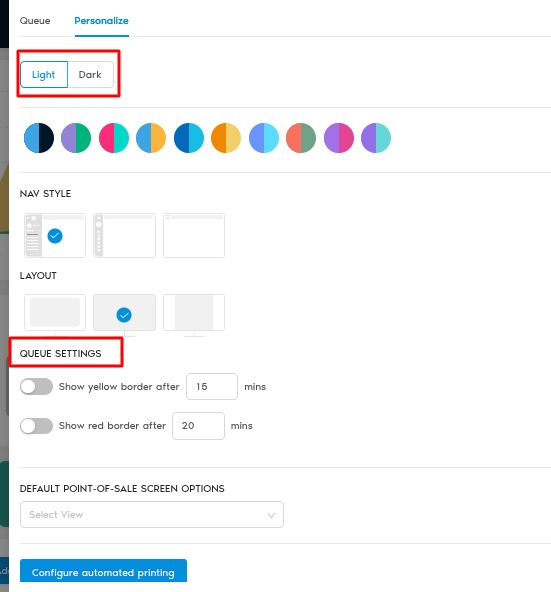
Appearance Settings
- Light or Dark Mode: Choose your preferred theme.
- Color Options: In Light Mode, select different color themes for accents.
- Navigation Style: Adjust navigation layout according to preference.
- Layout Options: Fit different screen sizes and devices.
Queue Settings
- Yellow Border Timer:
- Set a time (in minutes) after which a customer rectangle turns yellow in the queue — warning wait time.
- Red Border Timer:
- Set a time (in minutes) after which a customer rectangle turns red — critical wait time.
This helps your team quickly identify customers who have been waiting too long.
Default POS Screen
- Choose your default view:
- Tablet Mode: Optimized for compact touchscreen devices.
- Computer Mode: Full-size POS view for desktops or large screens.
- Switch at any time using the top right corner button on the POS screen.
Default Print Type
- Choose how you print:
- Browser Print: Print directly from the browser.
- Hardware Print: Use a specified printer device.
Quick Summary
The Side Settings Panel gives you powerful tools to manage customer flow, track shop activity, and personalize the POS experience for smooth daily operations.
User Dropdown Menu
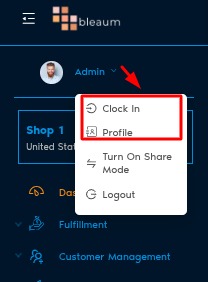
When you click on your Username (top right of the screen), a dropdown menu will appear with the following options:
Clock In / Clock Out
PIN-based clocking ensures secure and accurate time tracking.
Profile Section
Inside Profile, there are three tabs:
Personal Details
- Upload your profile picture.
- Edit your name and phone number.
- Upload additional documents you want attached to your profile.
PIN Settings
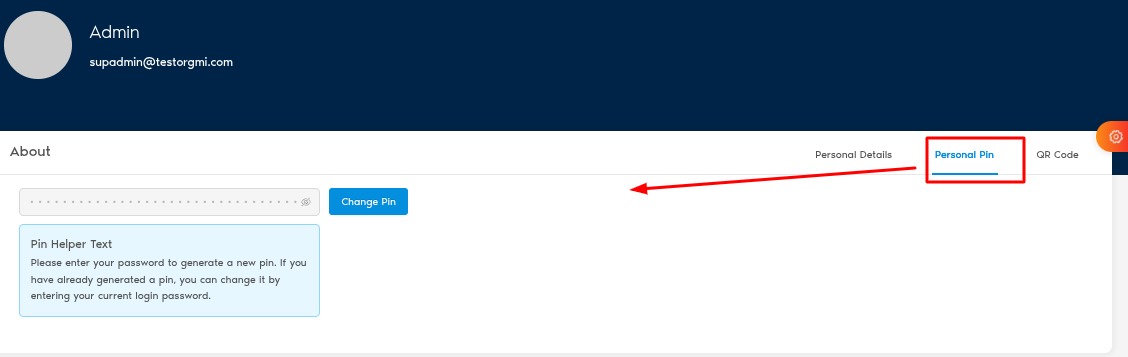
- Set or change your PIN used for Clock In/Out and order processing.
- How:
- Enter your current password.
- Create or update your new PIN.
QR Code
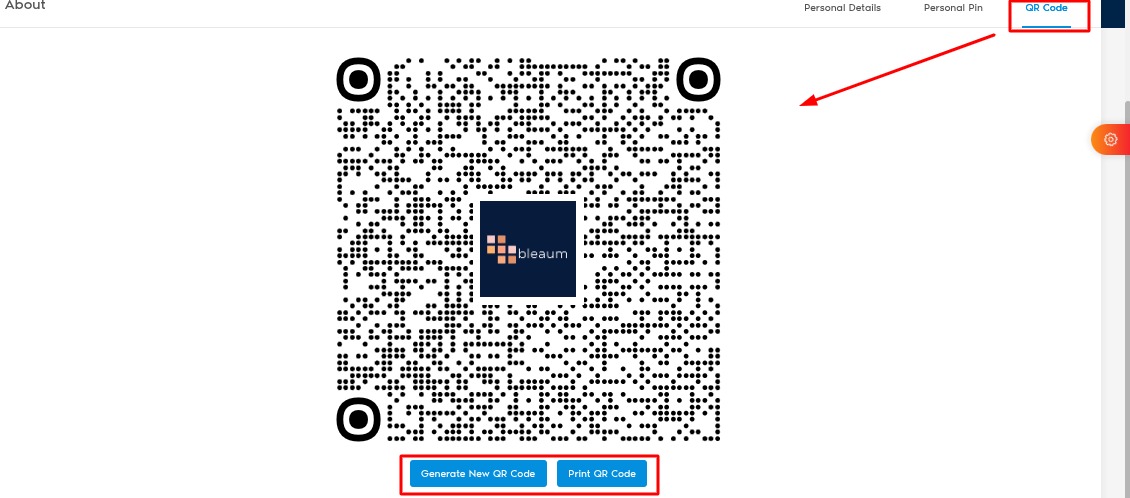
- Generate a new QR code tied to your profile.
- Print your QR code if desired.
- Uses of QR Code:
- Quickly sign into the platform without typing your organization key, username, or password.
- Manager Approvals: Scan your QR code when a manager approval is needed.
Turn on Share Mode
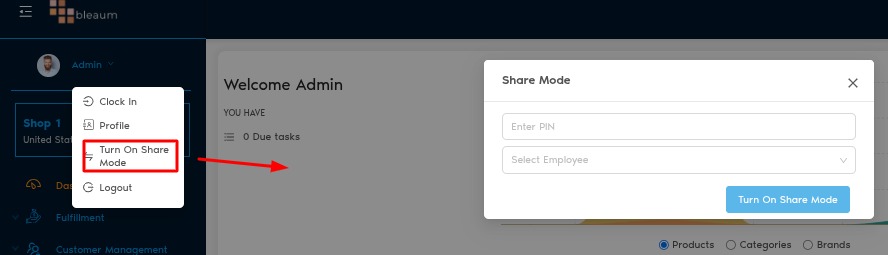
Purpose:
If multiple teammates share the same tablet or computer, Share Mode allows smooth user transitions.
How it Works:
- When processing an order, you will be asked to input your PIN.
- The order will be logged under the teammate who entered the PIN.
- Keeps orders and clocking accurate even when using the same device.
Perfect for busy retail environments or shift-based teams.
Logout
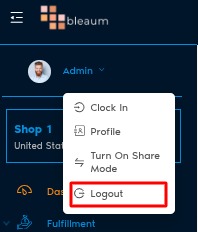
- Click Logout to immediately sign out of the platform.
- You will be redirected to the login page.
Quick Summary
The User Dropdown Menu empowers team members to securely clock in/out, manage their profile and PIN, quickly log in with QR codes, enable device sharing, and securely log out — all from one easy-to-access spot.
Action Icons
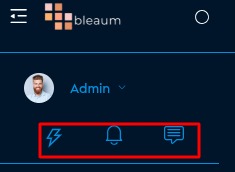
Directly below the user's name, you'll see three action icons. Each one gives quick access to important real-time tools.
Lightning Bolt Icon — Activity Center
Purpose: View and track all actions taken across the system.
- Click the Lightning Bolt to open the Main Activity Page.
- Features:
- View every action recorded in the system (customer check-ins, edits, sales, updates, etc.).
- Filter by Date:
- All actions
- Today
- Yesterday
- Custom Date Range
- Filter by Activity Type for more detailed searches (e.g., Product Edited, Order Completed).
Helps you quickly monitor what's happening across the platform at any time.
Bell Icon — Notifications
Purpose: See real-time alerts for incoming activities.
- Click the Bell to view:
- New orders coming into the system.
- Requests (such as order updates, manager approvals, or inventory alerts).
Never miss a customer request, order, or important system update.
- Click the Bell to view:
Chat Icon — Messaging Center
Purpose: Communicate instantly with Customers and Teammates.
- Click the Chat Bubble icon to access chat functions.
- Inside the chat center:
- Customer Tab:
- Send and receive messages directly with customers.
- Teammate Tab:
- Internal messaging with team members.
- Customer Tab:
Streamlines communication inside the store — faster responses, better teamwork.
Quick Summary
The Lightning Bolt, Bell, and Chat icons give you instant access to activity history, new notifications, and direct messaging — all designed to keep you connected, informed, and efficient throughout the day.
Dashboard Overview
The Dashboard gives you a full snapshot of store performance, tasks, sales, and system activity — all in one interactive place.
Top Section: Welcome & Quick Overview
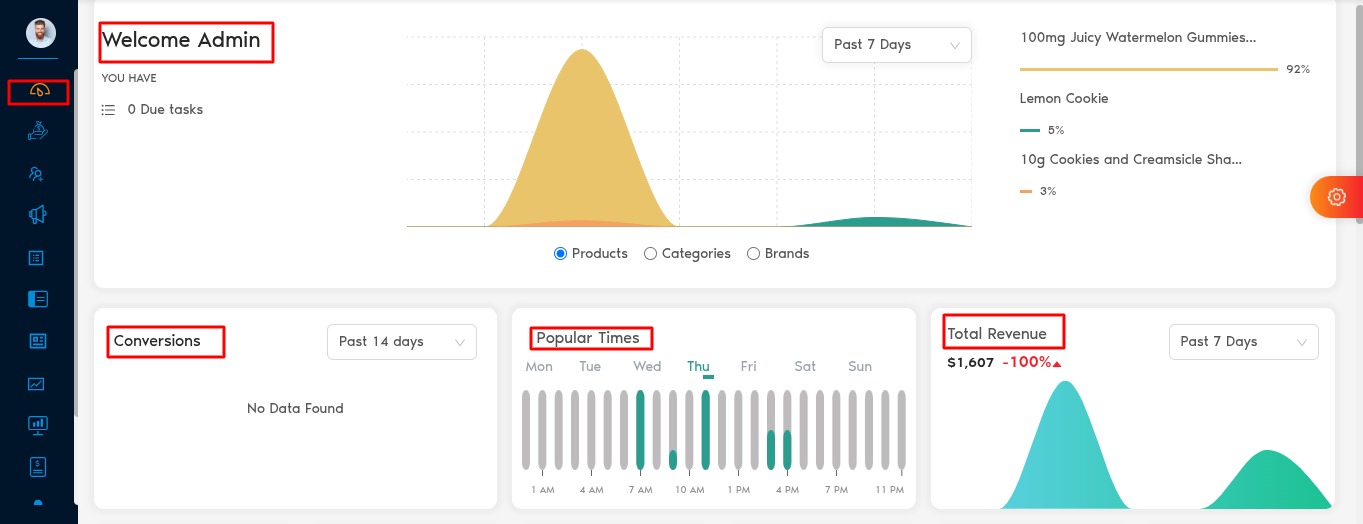
- Welcome Message: A quick greeting with user personalization.
- Due Tasks Summary: View any pending tasks directly on login.
- New Orders Summary: Instantly see if new orders have been placed.
Middle Section: Interactive Graphs
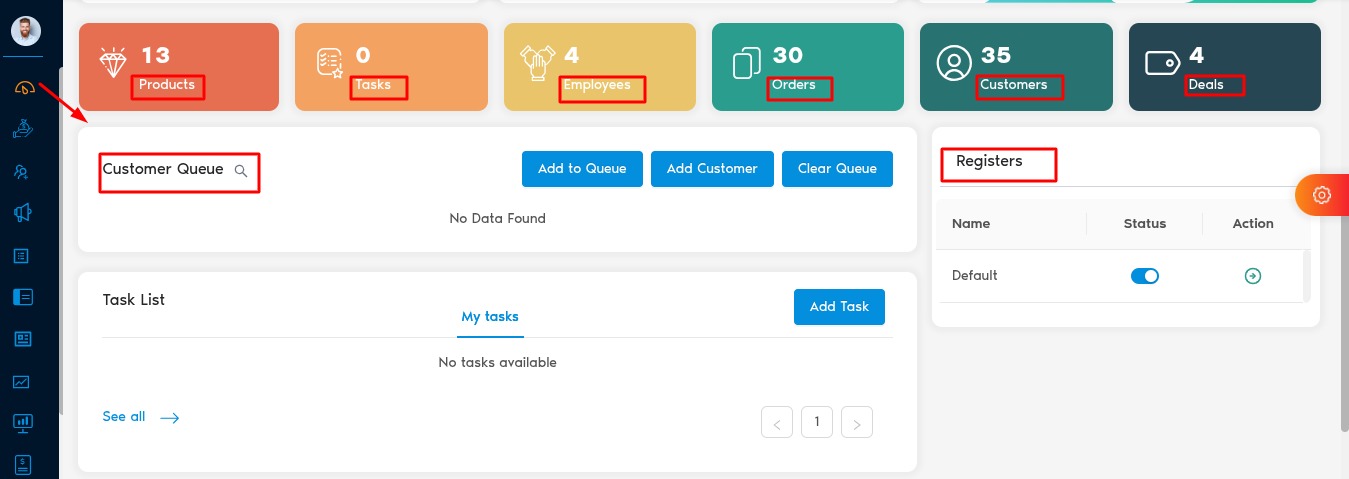
Chart Purpose Key Features Top Products / Categories / Brands Visualizes top-selling products, categories, or brands. Dropdown to switch view. Select different timelines for broader or narrower insights. Conversion Chart Tracks customer flow: how many were added to the queue vs. how many completed a purchase. Dropdown to switch between timelines (Past 7, 14, 30 days, 3 months, 6 months). Popular Times Shows busiest times based on historical order data. Hover over bars to see exact numbers. Great for staffing and scheduling insights. Total Revenue Chart Displays total revenue performance over time. Dropdown to adjust timeline (similar to Conversion Chart). All charts are interactive. Hover over points to see detailed data.
Middle Section: Key Quick Links
Below the charts, you'll find six quick links:
- Products
- Tasks
- Employees
- Orders
- Customers
- Deals
Clicking any link takes you directly to that section for deeper management.
Shortcuts Section
Shortcut Function Customer Queue Quickly jump to view and manage the customer queue. Task List Add new tasks, track pending/completed tasks, view priority, assigned user, creation and due dates. Registers View and manage registers. Toggle status ON/OFF. Under "Action", see associated drawers, open/close a drawer, create deposits or withdrawals. State Reporting Alerts Monitor all sales, transfer, and communication issues with state tracking and reporting integrations. Each event has a "+" button to expand and view detailed information, including links to resolve the issue.
Right Sidebar: Recent Activities
- A real-time feed showing the most recent actions taken across the system.
- Quickly review activities like new customers added, orders processed, updates made, and more.
Quick Summary
The Dashboard brings together customer flow, product performance, staff tasks, order management, and compliance alerts — helping you run the store smarter, faster, and more effectively, all from one centralized screen.
Fulfillment Section
The Fulfillment area in the sidebar contains four powerful tools for managing your in-store and online operations:
- POS (Point of Sale)
- Order Ahead
- Orders
- Returns
1. POS (Point of Sale)
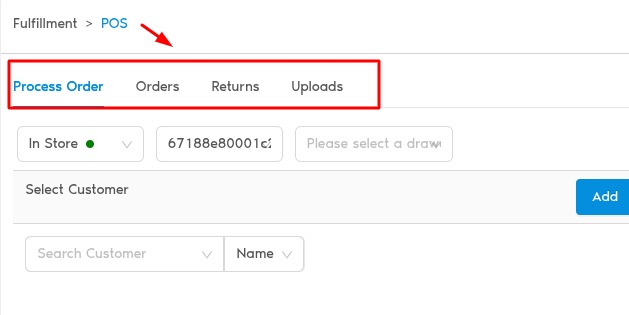
The POS page has four tabs to manage all customer orders and transactions:
Tab Function Process Order Create new orders (In-Store, Pickup, Delivery). Orders View order history sorted by the most recent created date. Click any Order Number to open a side panel showing order details and a Print Receipt button. Returns Manage returns using the same layout and features as the Orders tab. Uploads Store important customer documents like tax exemption forms, driver's licenses, images, and medical IDs. Add Customers
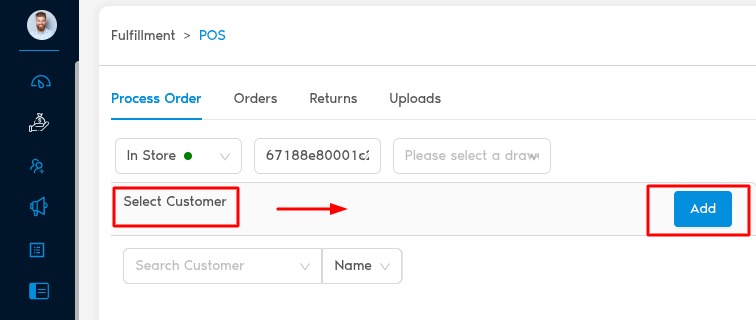
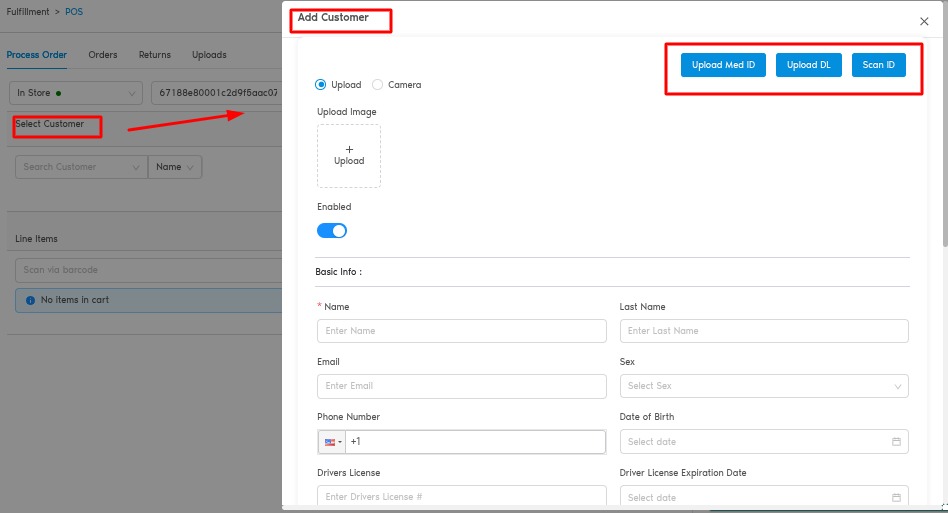
- Add Button ("Add"): Create a new customer profile from scratch.
- Customer Search Dropdown: Search customers by:
- First Name
- Last Name
- Phone Number
- Anonymous Order Option: Place an order without linking to a customer — ideal for recreational or non-medical sales.
Line Items Section (Product Selection)
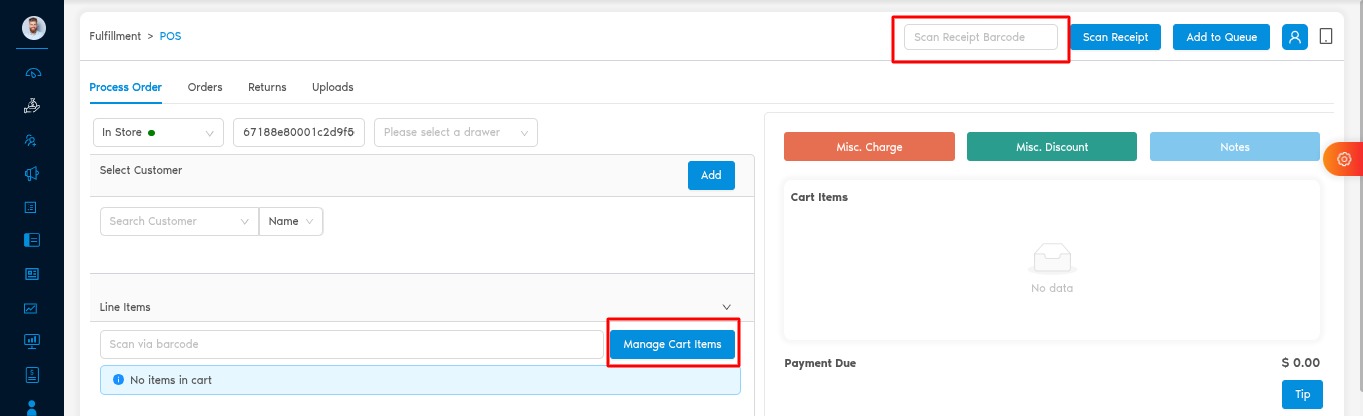
Two Ways to Add Products:
- Scan the Product Barcode, or
- Click "Manage Cart Items" to browse the full catalog.
Inside Manage Cart Items:
- Search by:
- Product Name
- Category
- Brand
- Tools Available:
- Filters (High-to-Low, Low-to-High, Alphabetical Order)
- Star Icon: Quickly view Top 25 Products
- Clear Filters button
Product Info Displayed:
- Stock availability
- THC/CBD percentages
- Product Matrix Alert: Products that are matrices have a red badge on the image — clicking opens package selection.
Customer Profile Side Panel
On the right-hand side while managing products:
- Customer Data:
- Name, Customer Type, Customer Groups
- Top 3 Purchased Items
- Top 3 Categories
- Top 3 Brands (All linkable)
At the bottom of this panel:
- Product Data (Quantity and Remove button for items added to cart)
- Customer Data:
Order Summary & Checkout
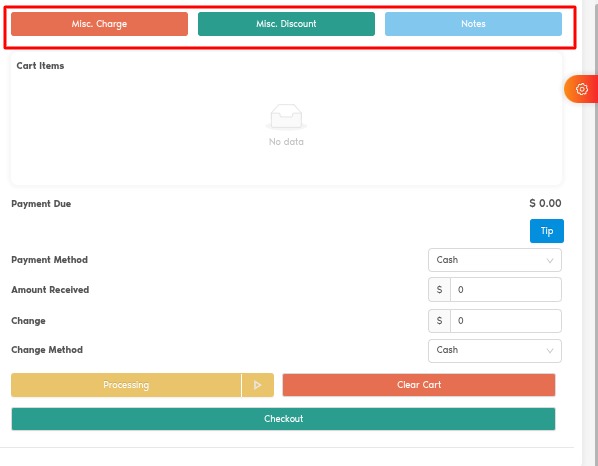
Top Summary Actions:
- Miscellaneous Charge: Add any extra charge.
- Miscellaneous Discount: Apply additional discounts.
- Notes: Add special customer order notes.
- Custom Date/Time: Backdate or future-date an order manually.
Cart Details:
- Items added + Deals applied
- Subtotal breakdown
Loyalty, Coupons, Store Credit:
- Loyalty Points: Enter $ amount, click Apply.
- Available Coupons: Select coupon and Apply.
- Store Credit: Enter amount, click Apply.
Tips Section:
- Pre-configured percentages (e.g., 10%, 15%, 20%) or Custom Tip entry.
Payment Method Section:
- Choose payment method, input Amount Received, calculate Change, and select Change Method.
Bottom POS Actions:
Button Function Processing Sends the order to Order Ahead for packing. Save as Draft Saves the order to be completed later. Clear Cart Clears all items in the cart. Checkout Complete the order and choose to: - Print Receipt
- Start New Order
- Email Receipt
Quick Links at the Top of POS Page:
- Scan Receipt: Pull up past orders quickly.
- Add to Queue: Add a customer directly to the queue.
- Open Queue: View the active customer queue.
- Switch to Tablet Mode:
- Tablet Mode arranges quick-access rectangular buttons:
- Select Customer
- Select Products
- Select Order Type
- Select Register
- Select Drawer
- Select Customer Group
- Tablet Mode arranges quick-access rectangular buttons:
2. Order Ahead
Manage E-commerce and Prepackaged Orders in progress.
Drag and Drop Orders Across Stages:
- New → Processing → Packaged → Ready
Smoothly track and move online and queued orders through the fulfillment process.
3. Orders
A standalone page to view and manage all completed or active Orders.
- Same data layout and functionality as the Orders tab inside POS.
4. Returns
Manage and process Returns directly.
- Matches the layout and options as the Returns tab inside POS.
- Search, view, and manage return history easily.
Quick Summary
The Fulfillment Module provides everything you need to create, process, manage, and complete orders — whether they're in-store, pickup, delivery, or e-commerce — in one organized, fast-moving workflow.
Customer Management Section
The Customer Management module is divided into three main subsections:
- Customers
- Customer Groups
- Rewards and Types
1. Customers
Manage your entire customer base easily and efficiently.
Customer Table
- Displays all customers in alphabetical order.
- Search Functionality:
- Search by First Name, Last Name, Phone Number, or Email.
- Top Buttons:
- Upload Driver's License: Upload a customer's ID and search for them directly.
- Scan ID: Scan a customer's ID to auto-populate information.
- Add Customer: Manually create a new customer profile from scratch.
Table Columns:
Column Details First Name Customer's first name. Last Name Customer's last name. Email Customer's email address. DOB Customer's date of birth. Action Quick access icons for managing customers. Action Column Functions:
- First Icon (POS Shortcut):
- Click to immediately take that customer into the POS screen to start a transaction.
- Edit Icon:
- Edit customer information.
- View customer active/inactive status.
- Name Click (Side Panel Opens):
- Customer Details
- Medical Info
- Driver's License Info
- Store Credits
- Loyalty Points
- Top Products Purchased
- Order History
- Return History
Everything you need to know about a customer, accessible from one panel.
- First Icon (POS Shortcut):
2. Customer Groups
Organize customers into specific groups for operational and compliance purposes.
Default System Groups:
- Medical Customers
- Recreational Customers
Group Management:
Each group appears in a table with an Action column.
Settings Icon:
- Click Open, then Settings to configure the group.
- Options Available:
- Minimum Age Verification:
- Set minimum age requirements for each group.
- Purchase Limit Profiles:
- Set purchase limits per product category based on state regulations (e.g., flower, concentrates, edibles).
- Minimum Age Verification:
Perfect for staying compliant with state laws and customizing customer experiences.
3. Rewards and Types
Create Customer Types for loyalty rewards, special discounts, and promotions.
Examples of Customer Types:
- Veterans
- Owners
- Employee Discounts
- Special Promotions
Rewards Table:
Each type appears in a table with an Action column.
Settings Icon:
- Click to configure reward settings.
- Options Available:
- Tax Exemption:
- Mark the group as tax-exempt if eligible.
- Discount Settings:
- Set a fixed Dollar Discount or a Percentage Discount applied to every order for that group.
- Tax Exemption:
Encourages loyalty and maximizes customer satisfaction with automatic perks!
Quick Summary
The Customer Management section gives you powerful tools to maintain customer profiles, organize them into functional groups, and reward them intelligently — all while keeping operations compliant and customer-focused.
Promotions Section
The Promotions module is divided into three subsections:
- Coupons
- Deals
- Loyalty Reward Settings
1. Coupons
Manage special discount offers that customers can redeem at checkout.
Coupon Table View
Column Details Name Coupon Code Description Created At (Date Created) Usage Clicking opens a Side Panel showing: - Who redeemed the coupon
- Time of redemption
- Associated Order Number
Action (Edit existing coupon to reflect new changes) Create a New Coupon
- Click Add Coupon (top right).
- Fill out the following fields:
- Coupon Name
- Coupon Code
- Description
- Discount Rate (Dollar amount or percentage)
- Customer Types: Select types like Veteran, Owner, or custom types.
- Customer Groups: Choose from Recreational, Medical, or any custom group.
- Sales Sources: Internal, External, or Both.
- Delivery Methods: POS, In-Store, Pickup.
- Stacking Policy:
- Define if the coupon can stack with Loyalty Rewards, Deals, or Both.
Validity and Expiration Configuration
- Start Date: Choose when the coupon becomes active.
- No Expiration or set Specific Start/End Dates.
- Day & Time Controls:
- Example: Activate only on Mondays and Tuesdays, 5-7 PM (for a Happy Hour deal).
- Multi-Store Support:
- Different days, times, and dates per location.
Notification Settings
- Send Notification:
- Upload Image, Input Title and Description.
- System sends out notification automatically when deal activates.
- Send Notification:
Rules Section
- Minimum Order Value: Customer must spend at least $X to redeem.
- Total Usage Limit: Max number of total redemptions before automatic expiration.
- Limit Uses Per Customer: Max redemptions per individual user.
- Maximum Applicable Discount: Cap the deal amount.
Coupon Image
- Upload a visual thumbnail that will appear in the Mobile App and Website listings.
2. Deals
Deals are almost identical to Coupons — with a few powerful additions:
Deal Table View
- Same table structure as Coupons:
- Name, Description, Code, Usage, Action.
- Same table structure as Coupons:
Deal Types:
Type Description Regular Deal Standard percentage or dollar-off deals, same as coupons. BOGO Deal Build "Buy One, Get One" promotions: choose specific products or categories and set exceptions for product/package eligibility. Create a New Deal
- Follow similar steps as Coupons:
- Add Deal Name, Code, Description, Discount Rate.
- Set Validity Dates, Days, Times.
- Configure Notification Settings.
- Define Sales Source, Delivery Method, and Stacking Policy.
- Add Rules for Minimum Spend, Usage Limits, Customer Restrictions.
- Upload Deal Image for customer-facing promotions.
Deals allow more complex promotional structures beyond simple discounts.
- Follow similar steps as Coupons:
3. Loyalty Reward Settings
Customize how your loyalty program works.
Points-to-Price Ratio
- Define how points convert into dollars.
- Example: 20 points = $1.
This ratio will drive how all loyalty calculations are made across orders.
Registration Loyalty
- On/Off Toggle.
- Reward customers with bonus points upon account creation.
First Order Loyalty
- On/Off Toggle.
- Reward customers again after they place their first order.
Reward Policy
Two approaches to awarding loyalty points:
Method Description Tiered Rewards Customers earn points based on basket spend thresholds (e.g., Spend $100, earn 500 points, Spend $200, earn 2000 points and spend $300, earn 5000 points). Per-Spending Rewards Customers earn X points for every $1 spent (e.g., Spend $1, get 1 point worth $0.05). Choose between rewarding heavier baskets or rewarding every dollar spent.
Loyalty Restrictions
- Limit how customers redeem loyalty points by:
- Points Limit
- Dollar Limit
- Percentage of Order Limit
Prevents over-redeeming and protects margins.
- Limit how customers redeem loyalty points by:
General Settings
- Stacking Policy:
- Define whether loyalty can stack with Coupons, Deals, or Both.
- Require Customer Contact:
- Toggle if a customer must provide an Email or Phone Number to participate in Loyalty.
Control participation and stacking rules for better program management.
- Stacking Policy:
Quick Summary
The Promotions module empowers you to offer strategic discounts, build creative deals, reward loyalty smartly, and manage promotional campaigns — all while maintaining total flexibility on how, when, and who gets rewarded.